Privacy-compliant WhatsApp integration
Import images from WhatsApp and convert them to PDF
Clients often send documents as photos via WhatsApp. With MaraDocs, you can bring these images into your firm in two ways: most conveniently with our browser extension for WhatsApp Web, or by drag & drop from the WhatsApp desktop app. MaraDocs does not get access to your WhatsApp messages.
Recommended: Browser extension for WhatsApp Web
With our free browser extension "MaraDocs import from WhatsApp Web", you can transfer images from a chat in WhatsApp Web directly into MaraDocs. The extension adds a MaraDocs bar to WhatsApp Web, where you can view, select and import all images from a chat.
- All images at once: The extension finds all images in the open chat. You select the images you want and import them into MaraDocs with one click.
- Order per chat: MaraDocs suggests a separate workspace named after the chat for each chat. This keeps documents from different clients neatly separated.
- Free for Chrome and Edge: You can install the extension from the Chrome Web Store in just a few clicks. You can also download images with it without a MaraDocs account.
- Data protection: MaraDocs does not get access to your WhatsApp messages. Only the images you select yourself are transferred.
Ready to go in three steps
1. Install the browser extension
Install the MaraDocs import from WhatsApp Web extension from the Chrome Web Store. It works in the Google Chrome and Microsoft Edge browsers. In Edge, confirm the first time that extensions from other stores are allowed.
2. Log in to WhatsApp Web
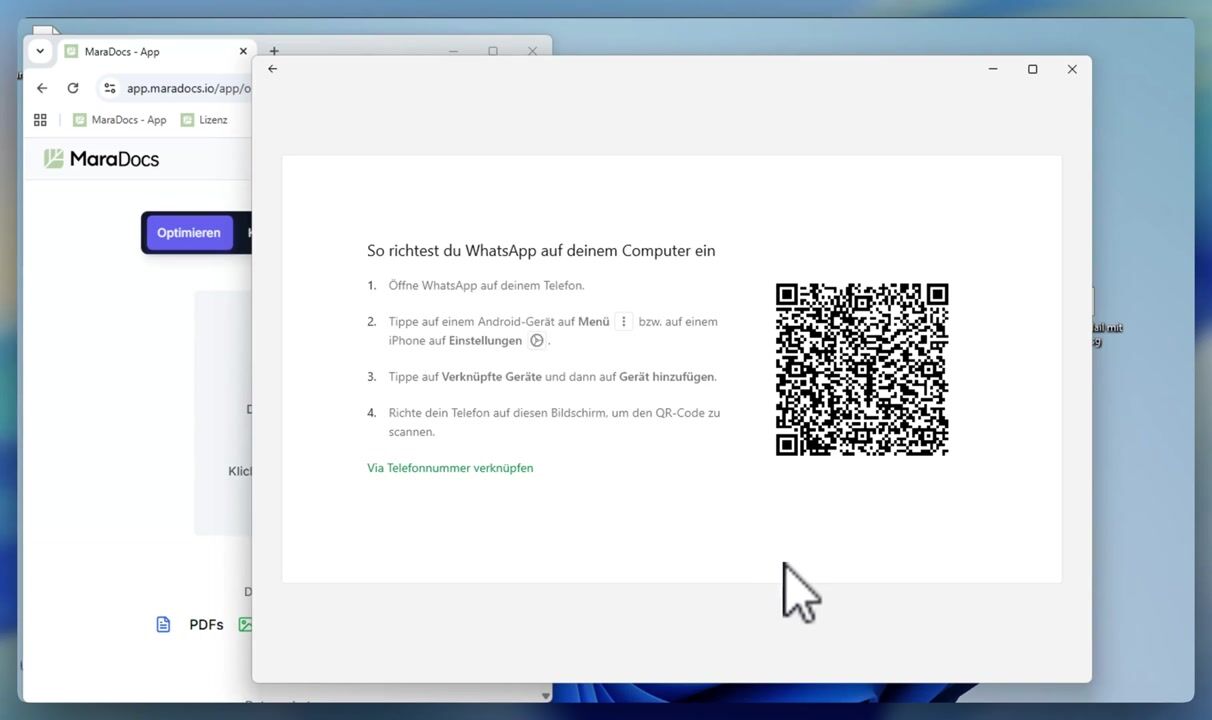
Open web.whatsapp.com in the same browser. On your smartphone, open WhatsApp, tap Linked devices and then Link a device. Then scan the QR code shown in WhatsApp Web. After that, you will see your chats in the browser.
3. Log in to MaraDocs
Log in to MaraDocs in the same browser, meaning the same browser profile and not in a private window. The MaraDocs bar in WhatsApp Web will then show your email address with a green dot. If it says Log in instead, click it, log in, and refresh the status using the arrow icon next to it.
How to import images
Open the chat you want and click Images in the MaraDocs bar. Select the images or use Select all to choose them all at once. With Import to MaraDocs, you transfer the images to MaraDocs, where they are automatically processed into optimised PDFs. Alternatively, save the images to your computer with Download.
Downloading images is free for everyone. To import into MaraDocs, you need a MaraDocs trial or licence.
Alternative: Import from the WhatsApp desktop app
If you prefer to use the WhatsApp desktop app for Windows or Mac, you can also drag and drop images one by one from the app into a MaraDocs browser window. MaraDocs analyses the images as usual and creates optimised PDFs from them.
Important: Open each image in WhatsApp and wait until it has fully loaded before dragging it into MaraDocs. As long as WhatsApp has not fully loaded the image, only the low-resolution preview is passed to MaraDocs.
The video shows how to import images from the WhatsApp desktop app into MaraDocs using drag & drop.
My boss asked me to import all the images that clients send us via WhatsApp to the law firm. With MaraDocs, we now save a lot of time. It works great and I can now process the images directly in MaraDocs.
MaraDocs kostenlos ausprobieren
Starten Sie jetzt und optimieren Sie Ihre PDFs mit unseren leistungsstarken Tools.
Kontaktieren Sie uns gerne auch per E-Mail:
info@maradocs.io