MaraDocs import from WhatsApp Web: Images from WhatsApp Web directly into MaraDocs
With the free browser extension MaraDocs import from WhatsApp Web, you can transfer images from WhatsApp chats to MaraDocs with a single click. How to install the extension for Chrome and Edge and set up login. Our tip for law firms.
Update October 2026:
The extension is now called MaraDocs import from WhatsApp Web and has a completely redesigned interface.
Chat export as PDF is no longer offered; the extension focuses entirely on importing images.
Importing images from WhatsApp made easy
We know the situation: clients send images instead of proper scans, and preferably directly via WhatsApp. Many lawyers use WhatsApp as a quick communication channel with their clients. But until now, working with these documents in the law firm has been very time-consuming: How do you get the images from the phone into the law firm software?
Our free browser extension for WhatsApp Web solves exactly that: You select the images in a chat and import them with one click into MaraDocs. There they are automatically processed into optimized PDFs. Alternatively, you can simply download the images to your computer.
Downloading is free for everyone, even without a MaraDocs account. To import into MaraDocs, you need a MaraDocs trial or license.
The video still shows an older version of the interface, but the process has remained the same:
Step 1: Install browser extension
The extension is available for free in the Chrome Web Store and works in Google Chrome and Microsoft Edge browsers.
- Chrome: Click Add in the Chrome Web Store and confirm with Add extension.
- Edge: Open the same link in Edge. The first time, Edge will display a notice. Click Allow extensions from other stores and then Add.
Tip: Pin the extension using the puzzle icon next to the address bar to keep it always visible.
Step 2: Sign in to WhatsApp Web
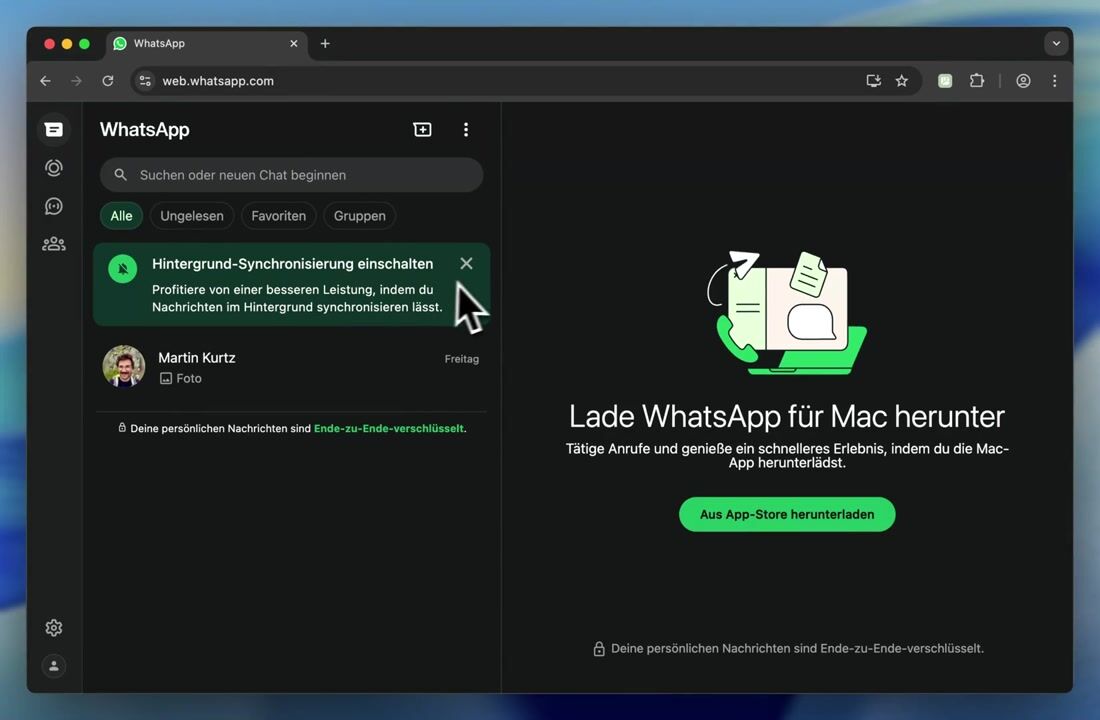
WhatsApp Web is the browser version of WhatsApp. You connect it once with your smartphone, and then you can see all chats in the browser.
- Open web.whatsapp.com in the same browser where you installed the extension. A QR code will appear.
- Open WhatsApp on your smartphone:
- Android: Tap the three dots in the top right and then Linked devices.
- iPhone: Tap Settings at the bottom and then Linked devices.
- Tap Link a device and confirm with fingerprint, Face ID, or PIN if necessary.
- Hold your smartphone's camera up to the QR code in the browser.
After a few seconds, your chats will appear in WhatsApp Web. Your smartphone does not need to be nearby permanently. You can find more details in the WhatsApp Web guide.
Step 3: Sign in to MaraDocs in the same browser
The extension uses your existing MaraDocs login in the browser. So you don't need to sign in to the extension itself, just sign in to MaraDocs in the same browser.
- Open app.maradocs.io in a new tab and sign in with your MaraDocs account.
- Switch back to WhatsApp Web. At the top of the window you'll see the MaraDocs bar of the extension.
- If you're signed in, the bar shows your email address with a green dot.
- If it says Log in instead, click on it, sign in, and then click the arrow icon next to it to refresh the status.
If the login is not recognized, it's usually due to one of the following:
- MaraDocs and WhatsApp Web are open in different browsers or browser profiles.
- You're using a private window (Incognito or InPrivate mode).
- Your MaraDocs account has no trial or license. In this case, MaraDocs will show a corresponding message when importing.
Step 4: Select images and import to MaraDocs
Open the chat with the desired images in WhatsApp Web and click Images in the MaraDocs bar. The extension displays all found images from the chat in an overview.
- Click on the desired images or select all at once with Select all.
- With Reload, the extension searches for images in the chat again.
- With Import to MaraDocs, you transfer the selected images to MaraDocs.
- With Download, you save the images to your computer instead.
When importing, MaraDocs opens in a browser tab (or an already open tab is used). MaraDocs suggests transferring the images to a new workspace named after the chat. This keeps documents from different clients cleanly separated. The images are then analyzed by MaraDocs as usual and processed into optimized PDFs.
Tips for importing
- Older images: WhatsApp Web only loads messages that are currently visible. Scroll up in the chat to load older images. As long as the image selection is open, the extension automatically recognizes newly loaded images.
- Image groups: When a client has sent multiple images at once, WhatsApp only shows some of them as a group. Click once on the image group. In the following view, all images are displayed and the extension recognizes them as well.
Data protection and privacy
It's important to us to emphasize that our browser extension only extracts image files from chats. These images are only transmitted to MaraDocs when you have selected them and clicked Import to MaraDocs.
- MaraDocs does not gain access to your WhatsApp messages.
- At no time does MaraDocs access your WhatsApp messages.
- The browser extension does not send any messages or other data to us or third parties.
Intelligent document processing with MaraDocs
With MaraDocs, you transform your clients' email attachments into perfect scans. Crop, straighten, merge, text recognition, and much more.
Start free nowMaraDocs creates optimized PDFs from client documents
Anyone who receives images instead of PDFs from clients no longer needs to convert them manually. MaraDocs handles the entire process – quickly, reliably, and without loss of quality.
- Simply import entire emails
- all images are automatically analyzed
- the result: optimized PDFs
MaraDocs - as if the client had used a scanner app.
🚀 Try now: Try MaraDocs for free
Subscribe to our newsletter
Stay up to date with us and receive the latest news, articles, and resources by email.